


TV Cast Pro for Samsung TV
4.0174.00 Reviews
App Specs
- Version
- 2.68
- Updated On
- License
- $6.99
- Downloads
- 50,000+
- Developer
- 2kit consulting
- Categories
- Video Players & Editors
- Platform
- Android, iOS
Screenshots
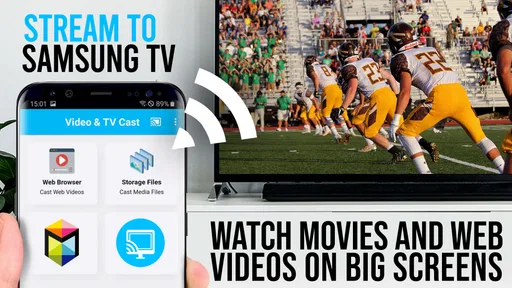
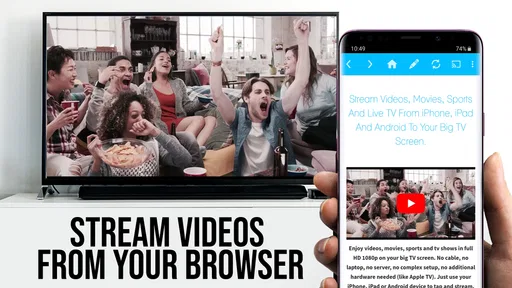
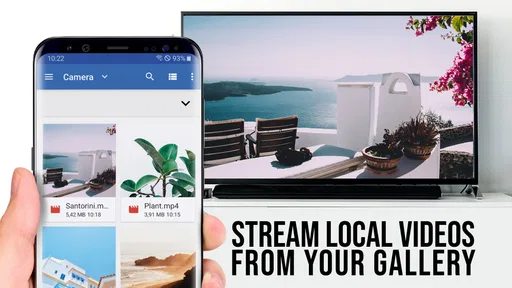
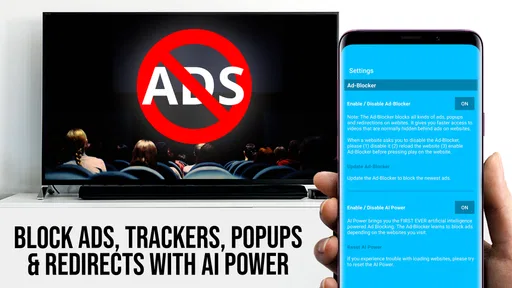
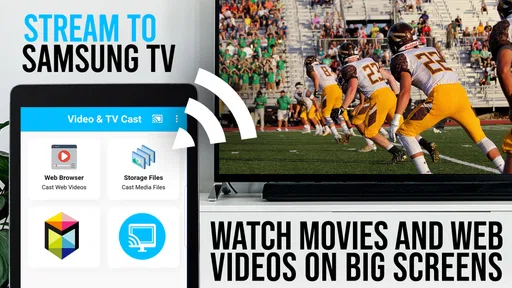
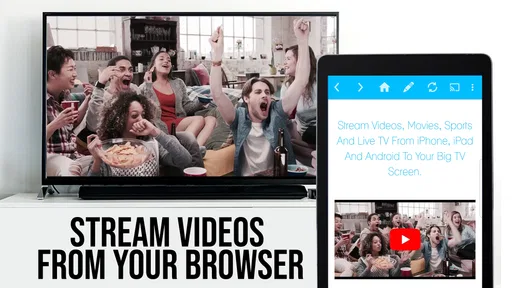
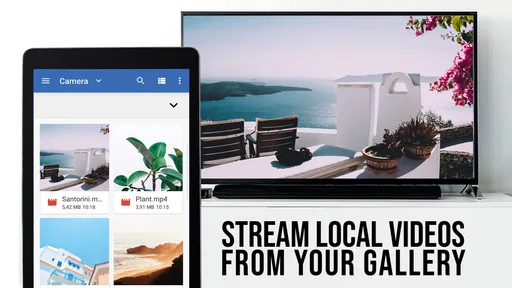
 Analysis by AppCompare
Ever found yourself on the couch, popcorn in hand, ready to dive into a new show only to wrestle with casting your favorite content onto your Samsung TV? You're not alone! That's where TV Cast Pro for Samsung TV comes into play. As someone who's spent a fair share of time figuring out the best ways to get my phone content onto the big screen, this app feels like a game-changer.
Getting Started with TV Cast Pro
The first thing you need to know about TV Cast Pro for Samsung TV is its straightforward setup. I was pleasantly surprised by how easy it was to get things rolling. You simply download the app onto your smartphone, and with a few taps, you're ready to cast. No more fiddling with cables or struggling with complicated setups.
Once installed, the app guides you through connecting your phone to the same Wi-Fi network as your Samsung TV. This part is crucial, so make sure your Wi-Fi is up to the task. The app provides clear instructions, making it a breeze even for those who aren't particularly tech-savvy.
Where setup can get sticky
The same-network step is the first thing I would check if the television does not appear or a cast attempt stalls. A phone can be connected to Wi-Fi while the TV is using a different network name or a guest network, and that can prevent the two devices from finding each other. I’d confirm both are on the intended home network before changing settings or reinstalling anything.
It also helps to separate discovery trouble from playback trouble. If the TV is visible but a video will not start, the basic connection may be fine; the particular page or video source could be the obstacle. Trying a different clip from the same site, then a different site, is a practical way to narrow down where the interruption occurs without guessing.
This is a browser-based casting tool, so I would not treat it as a universal screen mirror. If your goal is to show a phone app that has no web video page, a device’s built-in screen-sharing option may be a better match. TV Cast Pro makes more sense when the content is already available as an online video that can be opened in its browser.
A calmer first-use routine
For a first session, I’d open the app before settling in, check that the TV is discoverable, and test with a short video rather than starting with a long film or livestream. That simple test separates setup issues from the frustration of discovering a problem halfway through something you planned to watch.
Worth Reading Before You Choose

EA SPORTS FC Mobile 26 Is a Bigger Football Game, but It Takes Time

Flipboard Shows What News Apps Must Do Beyond the Feed

Switching to Android Auto Means Rethinking Your Driving Routine

Google Calendar Makes a Crowded Week Easier to Manage

Ludo King Makes the Most of the Minutes Between Plans

Baby Panda World Brings Quick Play to Modern Phones, but Its Game Library Feels Busy
When a video works, save the page if it is one you expect to revisit. Bookmarks are most useful as a small personal launchpad for familiar sites, not as a guarantee that every page will keep working forever. Websites can change their layout or video delivery, so a saved address may still need a fresh search or a different playback choice later.
User Experience and Interface
Let's talk about the interface—because we all know a clunky app can ruin the experience. Thankfully, TV Cast Pro keeps it simple and intuitive. The home screen is clean, with all the essential functions laid out clearly. You won’t find yourself lost in a maze of unnecessary features.
One of my favorite features is the built-in browser. It lets you search for online videos directly within the app, which you can then cast to your TV. This is perfect for streaming enthusiasts who love exploring new content beyond the usual Netflix or YouTube offerings. Plus, the app supports a variety of formats, so you're not limited to just one type of content.
Where it fits among casting choices
The useful distinction is between sending a video from a web page and mirroring everything on a phone. The browser approach is convenient when I want to find a video online, start it from the handset, and watch on the Samsung TV without turning the phone screen into the main event. It is less suitable for presentations, games, or apps whose content is not exposed as a web video. For those, built-in phone-to-TV mirroring or a dedicated streaming device is usually the more direct route.
It also occupies a different niche from opening a streaming service directly on the television. If a service already has a TV app and I use it often, launching that app on the TV is generally simpler and avoids relying on a phone as the controller. I reach for TV Cast Pro when I have found a particular web video that is awkward to locate through the TV’s own interface, or when I want to browse on my phone and send a compatible video to the larger screen.
A realistic use is an evening when a friend sends a web video in a message. I can open the page in the app, check that it plays on the phone, and then try casting it to the TV rather than passing the handset around. If the page contains several embedded players, I would test the actual video first; a page loading successfully does not necessarily mean its player will cooperate with casting.
Performance and Reliability
When it comes to performance, TV Cast Pro delivers a solid experience. The connection was stable during my testing, with minimal lag or buffering issues. It's important to note that this can depend on your Wi-Fi strength, but under normal conditions, the app performs admirably.
The app also allows for HD streaming, which is perfect for those of us who love crisp and clear visuals. I tested it with a few of my favorite shows and movies, and the quality was consistently excellent. Just make sure your internet connection can handle it!
Recovering when playback falters
If playback stops, I’d first note whether the TV disconnects or only the video freezes. A full loss of connection points me back to the shared Wi-Fi and device discovery; a frozen picture while the TV remains connected makes the video source or the network load more likely. That distinction saves time because repeatedly reconnecting the TV will not fix a stream that is failing at its source.
For a buffering video, I would pause briefly, allow the connection to settle, and try a lower-demand clip or a different page as a comparison. If other videos play normally, the original site may be the limiting factor. If several unrelated sources struggle, checking the home network and reducing competing network use is a more sensible next step than assuming the app itself is broken.
For a livestream, a short delay or interruption can be more noticeable than with an on-demand clip because the stream is continuously arriving. I would avoid judging reliability from one live broadcast alone: test another stream or an ordinary video under the same conditions. This is a practical way to tell whether the issue is tied to that broadcast rather than to the TV connection generally.
When the app may not be the cause
Online video pages are not all built alike. Some load a page but rely on a player or delivery method that does not behave well when sent to a television. If one site refuses to cast while another works, that contrast is useful evidence: it suggests a site-specific compatibility problem, not a general failure to connect your phone and TV.
Network conditions can also vary around the home. A phone may have a strong signal where you browse, while the TV is farther from the router or affected by walls. If the picture repeatedly buffers in one room but behaves better when the devices are closer to the router, the network path is worth investigating before changing app settings.
I would also keep expectations grounded about protected or service-specific content. A web video that plays on a phone is not automatically guaranteed to play through a browser casting workflow on a TV. When a subscription service offers its own television app or a supported casting control, using that official route is often the safer and less frustrating choice.
Additional Features Worth Mentioning
Another handy feature is the ability to bookmark websites within the app. This means you can quickly access your favorite streaming sites without having to type in the URL each time. It’s a small touch, but it goes a long way in improving user convenience.
For those concerned about privacy, the app offers secure connections, ensuring your streaming activity remains private. This is a crucial feature in today's digital age where privacy is paramount.
Who I’d recommend it to
I see the strongest fit for someone who owns a Samsung TV, often finds video on websites, and prefers searching from a phone rather than navigating web pages with a television remote. It can also suit a household that wants a simple way to put a compatible online clip on the big screen without adding a separate streaming box. The browser and bookmarks are most valuable when they support a repeatable habit: finding a familiar source, choosing a video, then watching from the couch.
I would steer away from it if nearly all your viewing already happens in TV apps, or if you expect every phone app to appear on the television. It is also not my first choice for someone who wants a full desktop-like browser experience on the TV itself. In those cases, the TV’s native services, built-in screen sharing, or a dedicated streaming device may offer a more natural workflow.
The app is called TV Cast Pro, comes from 2kit consulting, and sits in the video-player and editing category. It costs $6.99, so I would think about how often I actually watch web videos on the television before buying. It is rated for Everyone, and its 4.0 average from around 1.7 thousand ratings, alongside over 50 thousand installs, gives a useful sense of its audience without guaranteeing that every website will work equally well.
Final Thoughts
Overall, TV Cast Pro for Samsung TV is a fantastic choice for anyone looking to enhance their streaming experience. It’s user-friendly, reliable, and packed with features that truly make casting a seamless experience. Whether you're a tech enthusiast or someone who just wants to enjoy their content without hassle, this app is worth considering.
So next time you’re ready for a binge-watching session, give TV Cast Pro a try. It might just become your new favorite app for streaming on the big screen. Happy casting!
My practical verdict
The app’s real value is narrower—and more useful—than the promise of casting everything: it gives me a phone-based route to compatible web videos on a Samsung TV. The current version is 2.64 and it requires Android 7.0 or later, details worth checking against the device you plan to use before purchasing. It was released on November 3, 2016, and remains a focused option rather than a replacement for every way of watching online video.
My advice is to buy it for a specific routine, not an abstract hope that casting will become effortless everywhere. If you regularly browse web video, want to keep a few destinations bookmarked, and are comfortable using the same Wi-Fi network for phone and TV, it has a clear job to do. If your viewing is mostly inside established streaming apps, or you need mirroring for non-video content, I would choose the relevant built-in TV or phone feature instead. That distinction is the best way to avoid disappointment and decide whether this particular tool earns a place in your setup.
Pros
- Seamless streaming to Samsung TVs.
- Supports multiple video formats.
- Easy-to-use interface for all users.
- No ads in the Pro version.
- High-quality video playback.
Cons
- Requires strong Wi-Fi connection.
- Limited subtitle support.
- Initial setup can be tricky.
- No screen mirroring feature.
- Not compatible with all TV models.
FAQs for TV Cast Pro for Samsung TV
What is TV Cast Pro for Samsung TV?
TV Cast Pro for Samsung TV is an application that allows users to stream videos, music, and images from their smartphones to their Samsung Smart TVs. It supports a wide range of video formats and provides a user-friendly interface, making it easy for anyone to mirror their mobile content onto a larger screen.
How do I set up TV Cast Pro on my Samsung TV?
To set up TV Cast Pro, first download the app on your smartphone and ensure your Samsung TV is connected to the same Wi-Fi network. Open the app, select your TV from the list of available devices, and follow the on-screen instructions to start casting content. No additional hardware is needed.
Does TV Cast Pro support all video formats?
TV Cast Pro supports a wide range of video formats, including MP4, M3U8, and HLS, among others. However, it may not support some proprietary formats or those requiring additional codecs. It’s recommended to check the compatibility of your video files before attempting to cast them to your TV.
Are there any additional costs after purchasing TV Cast Pro?
Once you purchase TV Cast Pro, there are no recurring subscription fees. However, be aware that streaming certain content might incur additional data charges from your internet service provider, especially if you are not on an unlimited data plan. Always check your plan details to avoid unexpected charges.
Is TV Cast Pro compatible with all Samsung TV models?
TV Cast Pro is compatible with most Samsung Smart TV models, particularly those released after 2012. It’s advisable to check the app’s compatibility with your specific TV model on the app store or the developer’s website to ensure seamless functionality before purchasing.


